Sometimes you just need an image so you can finish writing and publish your content. Opening another tool, generating an image, downloading it, and then uploading it back into your CMS quickly becomes tedious.
Since Sanity lets us replace and extend built-in field editors, we can bring that workflow directly into the Studio. In this tutorial we'll build a custom image field that works exactly like the default Sanity image input, but with an additional option to generate images using OpenAI and save them directly to your media library.
The finished field behaves exactly like a normal Sanity image field, but editors also get the option to:
- Generate images from a prompt
- Preview the result before saving
- Upload accepted images directly to Sanity Assets
- Use generated images just like any other image reference
We'll build the solution from three small pieces:
AIGeneratedImagefor handling generated image dataOpenAIGeneratorfor wrapping the OpenAI SDKAIImageInputfor the custom Sanity UI
[!NOTE] This is intended for Sanity CMS so I will assume that you already have some basic experience and understanding of Sanity CMS, Documents and objects in this article.
1. Create an Open AI account
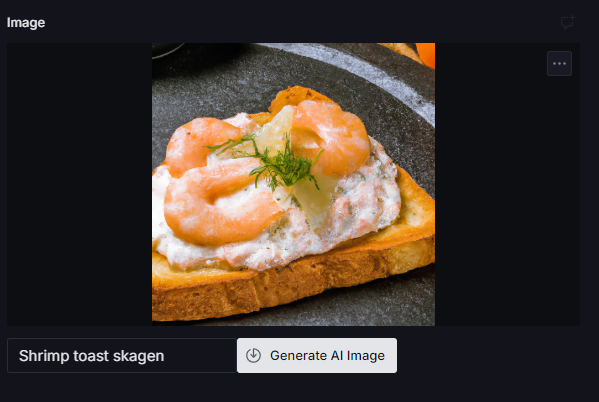
First set up your Open AI account. It's fast and easy and you can signup with your basic Google Account
You'll need the following keys from your account:
- Project ID
- Organization ID
- Api key
Save this in a notepad or similar for now.
2. Add fields to .env
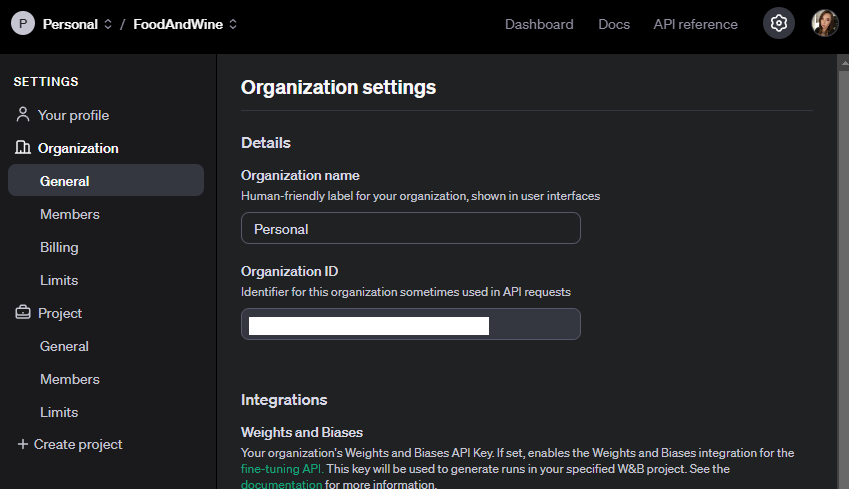
If you have .env files, which I recommend, you should add the keys/ids to your environment files. Just replace the "yourKey" with your values from OpenAI.
[!IMPORTANT] Sanity Studio environment variables must be prefixed with
SANITY_STUDIO_to be accessible in the browser.
SANITY_STUDIO_OPENAI_PROJECT = yourKey
SANITY_STUDIO_OPENAI_ORGANIZATION = yourKey
SANITY_STUDIO_OPENAI_API_KEY = yourKey
3. Install OpenAI package
Now we're going to use the OpenAI npm package
So in your project root run one of the following commands to install it:
npm install openai- or
yarn add openai
Representing generated images
We'll split the code into three files to keep things clean and easy to follow.
Start by creating AIGeneratedImage.ts. This class holds the image data returned from OpenAI and takes care of converting it to a Blob for uploading.
class AIGeneratedImage {
  readonly width: number;
  readonly height: number;
  readonly b64: string;
  readonly name: string;
  readonly fileName: string;
  readonly fileNameWithGuid: string;

  constructor(name: string, b64 = "", width = 1024, height = 1024) {
    this.name = name;
    this.b64 = b64;
    this.width = width;
    this.height = height;
    this.fileName = name.replaceAll(" ", "_");
    this.fileNameWithGuid = `${this.fileName}_${crypto.randomUUID()}`;
  }

  toBlob(): Blob {
    const bytes = Uint8Array.from(atob(this.b64), (c) => c.charCodeAt(0));
    return new Blob([bytes], { type: "image/png" });
  }
}

export default AIGeneratedImage;
A few things worth noting here:
- All properties are
readonlysince nothing should mutate the image data after it's created crypto.randomUUID()generates a proper UUID for unique filenames — built into all modern browsers, no custom code neededtoBlob()converts the base64 string to aBlobin one line usingUint8Array.from
Wrapping the OpenAI SDK
Next, create OpenAIGenerator.ts. This class wraps the OpenAI SDK and handles image generation.
import OpenAI from "openai";
import AIGeneratedImage from "./AIGeneratedImage";

class OpenAIGenerator {
  private readonly openAI: OpenAI;

  constructor(organization: string, project: string, apiKey: string) {
    this.openAI = new OpenAI({
      dangerouslyAllowBrowser: true,
      organization,
      project,
      apiKey,
    });
  }

  async generateImage(
    prompt?: string,
    format:
      | "256x256"
      | "512x512"
      | "1024x1024"
      | "1792x1024"
      | "1024x1792" = "1024x1024",
  ): Promise<AIGeneratedImage | undefined> {
    try {
      const response = await this.openAI.images.generate({
        prompt: prompt ?? "",
        n: 1,
        size: format,
        response_format: "b64_json",
      });
      const b64 = response.data?.[0]?.b64_json;
      if (!b64) return undefined;
      const [width, height] = format.split("x").map(Number);
      return new AIGeneratedImage(prompt ?? "", b64, width, height);
    } catch (err) {
      console.error(err);
      return undefined;
    }
  }
}

export default OpenAIGenerator;
[!NOTE] Unless you want to create your own backend API endpoint you'll need
dangerouslyAllowBrowser: true. Your Sanity Studio will already be behind a login so this is fine.
Building the custom image input
Time to move on to the React component!
Create AIImageInput.tsx in /components/. This is the starting base for our custom image property editor:
import { ComponentType } from "react";
import { ImageValue, ObjectSchemaType, ObjectInputProps } from "sanity";

export const AIImageInput: ComponentType<
  ObjectInputProps<ImageValue, ObjectSchemaType>
> = (props: ObjectInputProps<ImageValue>) => {
  return <div></div>;
};
Adding the required imports
We need imports for Sanity UI components, icons, the Sanity client, and our new helper classes.
Add the following to the top of your input component:
import {
  TextInput,
  Button,
  Flex,
  Card,
  Text,
  Spinner,
  useToast,
  Dialog,
  Box,
} from "@sanity/ui";
import {
  GenerateIcon,
  RefreshIcon,
  UploadIcon,
  CloseIcon,
} from "@sanity/icons";
import { useCallback, useState, ComponentType } from "react";
import {
  useClient,
  ImageValue,
  ObjectSchemaType,
  ObjectInputProps,
} from "sanity";
import { set } from "sanity";
import OpenAIGenerator from "./OpenAIGenerator";
import AIGeneratedImage from "./AIGeneratedImage";
Notice that we no longer import OpenAI directly or unset from Sanity — the generator class handles the OpenAI SDK, and since uploading always succeeds or throws, we only ever need set.
Feel free to swap the icons for React Icons or anything else you prefer.
Accessing the Sanity client
Add these lines to the start of your component to get the Sanity client and toast notifications:
const client = useClient({ apiVersion: "2025-08-21" });
const toast = useToast();
[!NOTE] Always pass an
apiVersioninYYYY-MM-DDformat. CallinguseClient()without one is deprecated.
Generating images
State
Instead of storing the raw base64 string and a separate filename, we now store the whole AIGeneratedImage object — it keeps everything in one place.
const [aIImage, setAIImage] = useState<AIGeneratedImage | undefined>();
const [prompt, setPrompt] = useState("");
const [loading, setLoading] = useState(false);
const [saving, setSaving] = useState(false);
const [open, setOpen] = useState(false);
Generate function
The generate callback uses async/await and a finally block so setLoading(false) always runs, even if something throws:
const generateAiImage = useCallback(async () => {
  setAIImage(undefined);

  if (!prompt.trim()) {
    toast.push({
      status: "error",
      title: "You have to enter a text to generate image",
    });
    return;
  }

  if (loading || !process.env.SANITY_STUDIO_OPENAI_API_KEY) return;

  setLoading(true);
  try {
    const generator = new OpenAIGenerator(
      process.env.SANITY_STUDIO_OPENAI_ORGANIZATION ?? "",
      process.env.SANITY_STUDIO_OPENAI_PROJECT ?? "",
      process.env.SANITY_STUDIO_OPENAI_API_KEY,
    );
    const image = await generator.generateImage(prompt, "1024x1024");
    if (image) {
      setAIImage(image);
      toast.push({
        status: "success",
        title: "Success!",
        description: `AI Image generated for ${prompt}`,
      });
    }
  } catch (error) {
    console.error(error);
    toast.push({
      status: "error",
      title: "Error when generating AI image!",
      description: `${error}`,
    });
  } finally {
    setLoading(false);
  }
}, [prompt, loading, toast]);
To display the generated image:
<img
  style={{ maxWidth: "350px", height: "auto", width: "100%" }}
  src={`data:image/png;base64,${aIImage.b64}`}
  width={aIImage.width}
  height={aIImage.height}
  alt="AI generated"
/>
Uploading images to Sanity
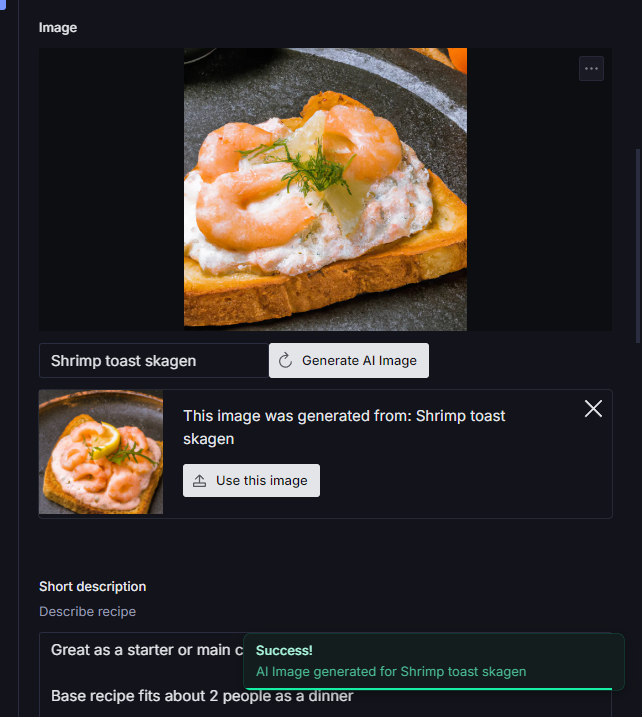
We won't automatically upload every image — not all AI images come out perfect and we don't want to use up unnecessary space. The editor confirms they're happy before we upload.
Since AIGeneratedImage already handles the blob conversion and unique filename, the save function is much simpler now:
const saveImage = useCallback(async () => {
  if (!aIImage) return;

  setSaving(true);
  setPrompt("");
  try {
    const blob = aIImage.toBlob();
    const image = await client.assets.upload("image", blob, {
      filename: aIImage.fileNameWithGuid,
    });
    setAIImage(undefined);
    props.onChange(
      set({
        _type: "image",
        asset: {
          _ref: image._id,
          _type: "reference",
        },
      }),
    );
    setOpen(false);
  } catch (err) {
    toast.push({
      status: "error",
      title: "Error when saving AI image!",
      description: `${err}`,
    });
  } finally {
    setSaving(false);
  }
}, [toast, client, aIImage, props]);
We call client.assets.upload to upload the blob to Sanity CMS. You don't need to add dataset or any webhook API key — we are in the Sanity Studio context, so useClient handles all that. props.onChange(set(...)) is what actually updates the image property value.
Add a clear function too, so editors can discard a generated image and start over:
const clearAIImage = useCallback(() => {
  setAIImage(undefined);
  setPrompt("");
  setLoading(false);
  setSaving(false);
}, []);
Registering the field
Now you can use your custom Sanity AI Image Input component for any image field. Here I've added it to a Sanity document:
defineField({
  name: "image",
  title: "Image",
  components: {
    input: AIImageInput,
  },
  type: "image",
}),
Complete code
AIGeneratedImage.ts
class AIGeneratedImage {
  readonly width: number;
  readonly height: number;
  readonly b64: string;
  readonly name: string;
  readonly fileName: string;
  readonly fileNameWithGuid: string;

  constructor(name: string, b64 = "", width = 1024, height = 1024) {
    this.name = name;
    this.b64 = b64;
    this.width = width;
    this.height = height;
    this.fileName = name.replaceAll(" ", "_");
    this.fileNameWithGuid = `${this.fileName}_${crypto.randomUUID()}`;
  }

  toBlob(): Blob {
    const bytes = Uint8Array.from(atob(this.b64), (c) => c.charCodeAt(0));
    return new Blob([bytes], { type: "image/png" });
  }
}

export default AIGeneratedImage;
OpenAIGenerator.ts
import OpenAI from "openai";
import AIGeneratedImage from "./AIGeneratedImage";

class OpenAIGenerator {
  private readonly openAI: OpenAI;

  constructor(organization: string, project: string, apiKey: string) {
    this.openAI = new OpenAI({
      dangerouslyAllowBrowser: true,
      organization,
      project,
      apiKey,
    });
  }

  async generateImage(
    prompt?: string,
    format:
      | "256x256"
      | "512x512"
      | "1024x1024"
      | "1792x1024"
      | "1024x1792" = "1024x1024",
  ): Promise<AIGeneratedImage | undefined> {
    try {
      const response = await this.openAI.images.generate({
        prompt: prompt ?? "",
        n: 1,
        size: format,
        response_format: "b64_json",
      });
      const b64 = response.data?.[0]?.b64_json;
      if (!b64) return undefined;
      const [width, height] = format.split("x").map(Number);
      return new AIGeneratedImage(prompt ?? "", b64, width, height);
    } catch (err) {
      console.error(err);
      return undefined;
    }
  }
}

export default OpenAIGenerator;
AIImageInput.tsx
import {
  TextInput,
  Button,
  Flex,
  Card,
  Text,
  Spinner,
  useToast,
  Dialog,
  Box,
} from "@sanity/ui";
import {
  GenerateIcon,
  RefreshIcon,
  UploadIcon,
  CloseIcon,
} from "@sanity/icons";
import { useCallback, useState, ComponentType } from "react";
import {
  useClient,
  ImageValue,
  ObjectSchemaType,
  ObjectInputProps,
} from "sanity";
import { set } from "sanity";
import OpenAIGenerator from "./OpenAIGenerator";
import AIGeneratedImage from "./AIGeneratedImage";

export const AIImageInput: ComponentType<
  ObjectInputProps<ImageValue, ObjectSchemaType>
> = (props: ObjectInputProps<ImageValue>) => {
  const [aIImage, setAIImage] = useState<AIGeneratedImage | undefined>();
  const [prompt, setPrompt] = useState("");
  const [loading, setLoading] = useState(false);
  const [saving, setSaving] = useState(false);
  const [open, setOpen] = useState(false);

  const onClose = useCallback(() => setOpen(false), []);
  const onOpen = useCallback(() => setOpen(true), []);

  const client = useClient({ apiVersion: "2025-08-21" });
  const toast = useToast();

  const generateAiImage = useCallback(async () => {
    setAIImage(undefined);

    if (!prompt.trim()) {
      toast.push({
        status: "error",
        title: "You have to enter a text to generate image",
      });
      return;
    }

    if (loading || !process.env.SANITY_STUDIO_OPENAI_API_KEY) return;

    setLoading(true);
    try {
      const generator = new OpenAIGenerator(
        process.env.SANITY_STUDIO_OPENAI_ORGANIZATION ?? "",
        process.env.SANITY_STUDIO_OPENAI_PROJECT ?? "",
        process.env.SANITY_STUDIO_OPENAI_API_KEY,
      );
      const image = await generator.generateImage(prompt, "1024x1024");
      if (image) {
        setAIImage(image);
        toast.push({
          status: "success",
          title: "Success!",
          description: `AI Image generated for ${prompt}`,
        });
      }
    } catch (error) {
      console.error(error);
      toast.push({
        status: "error",
        title: "Error when generating AI image!",
        description: `${error}`,
      });
    } finally {
      setLoading(false);
    }
  }, [prompt, loading, toast]);

  const saveImage = useCallback(async () => {
    if (!aIImage) return;

    setSaving(true);
    setPrompt("");
    try {
      const blob = aIImage.toBlob();
      const image = await client.assets.upload("image", blob, {
        filename: aIImage.fileNameWithGuid,
      });
      setAIImage(undefined);
      props.onChange(
        set({
          _type: "image",
          asset: {
            _ref: image._id,
            _type: "reference",
          },
        }),
      );
      setOpen(false);
    } catch (err) {
      toast.push({
        status: "error",
        title: "Error when saving AI image!",
        description: `${err}`,
      });
    } finally {
      setSaving(false);
    }
  }, [toast, client, aIImage, props]);

  const clearAIImage = useCallback(() => {
    setAIImage(undefined);
    setPrompt("");
    setLoading(false);
    setSaving(false);
  }, []);

  return (
    <div>
      {props.renderDefault(props)}
      <Flex paddingY={3}>
        <Card style={{ textAlign: "center" }}>
          <Button onClick={onOpen} text="Create AI Image" />
        </Card>
      </Flex>
      {open && (
        <Dialog
          header="Generate AI Image"
          id="generate-ai-image"
          onClose={onClose}
          zOffset={1000}
          width={"auto"}
        >
          <Box padding={4}>
            <Flex paddingY={3} direction={"column"} gap={4}>
              <TextInput
                placeholder="Describe image"
                value={prompt}
                onChange={(event) => {
                  setPrompt(event.currentTarget.value);
                  setAIImage(undefined);
                }}
              />
              <div>
                <Button
                  icon={aIImage ? RefreshIcon : GenerateIcon}
                  text={loading ? "Loading" : "Generate image"}
                  disabled={loading || !prompt}
                  onClick={generateAiImage}
                  tone={!loading && !prompt ? "neutral" : "primary"}
                />
              </div>
              {loading && (
                <Flex paddingX={4} justify="center" align="center">
                  <Spinner muted />
                </Flex>
              )}
            </Flex>
            {aIImage && (
              <Card radius={2} shadow={1} style={{ overflow: "hidden" }}>
                <Flex padding={2}>
                  <Flex direction={"column"} gap={2}>
                    <img
                      style={{
                        maxWidth: "350px",
                        height: "auto",
                        width: "100%",
                      }}
                      src={`data:image/png;base64,${aIImage.b64}`}
                      width={aIImage.width}
                      height={aIImage.height}
                      alt="AI generated"
                    />
                    <Flex direction={"column"}>
                      <Card paddingTop={4}>
                        <Flex gap={3} direction={"column"}>
                          <Text>This image was generated for prompt:</Text>
                          <Text>
                            <i>{aIImage.name}</i>
                          </Text>
                        </Flex>
                      </Card>
                      <Card paddingTop={4}>
                        <Flex gap={3} direction={"row"}>
                          <Button
                            icon={UploadIcon}
                            text={saving ? "Saving" : "Use this image"}
                            disabled={saving}
                            style={{ cursor: "pointer" }}
                            onClick={saveImage}
                            tone={"positive"}
                          />
                          <Button
                            icon={CloseIcon}
                            text={"Remove"}
                            style={{ cursor: "pointer" }}
                            onClick={clearAIImage}
                            tone={"caution"}
                          />
                        </Flex>
                      </Card>
                    </Flex>
                  </Flex>
                </Flex>
              </Card>
            )}
          </Box>
        </Dialog>
      )}
    </div>
  );
};
Source code
Want files to download instead? Take a look at the source code. Feel free to contribute with PRs.
Happy Sanity coding!